Hỗ trợ kỹ thuật 24/7 - Liên hệ ngay nếu bạn cần giúp đỡ!

Hotline kỹ thuật
MONA Academy SaaS eLearningMONA Academy
MONA Academy SaaS eLearning
VN|
EN
  • Features
  • Customers
  • Pricing
  • API Docs
  • User guides
    📋 Setup roadmap (all guides)Price tier configurationUsing the module feature (multi-course)Affiliate & affiliate payoutsUser managementEmail marketingUpgrading an account from Free to ProPublishing a lesson (video)PromotionsBlog managementGetting the Facebook & TikTok pixel scriptsConfiguring the SePay webhookEmail marketingSetting up email remarketing sequencesUsing the monthly/yearly renewal module (SaaS)The complete guide to running adsAdd-on productsMaterials per lessonMaterials per chapterSelling combosCustom layouts for standalone coursesThe subscription featureElectronic invoicesThe practice-test featureSigning in & registering an accountPaying by bank QR codeOrder managementDashboard & overview reports
  • User guides
VN|
EN
Create your Elearning websiteCreate Elearning website
  • Overview
  • Payment steps
  • A note on the transfer reference
  • Requesting an invoice
  • Troubleshooting

Share this guide:

Home>User guides>Paying by bank QR code
Recently updated05 September 2026

Paying by bank QR code

Overview

MONA Elearning supports bank QR code payments (VietQR). When you upgrade your service package, the system generates a QR code with the transfer reference already filled in, so you can pay quickly and have the payment reconciled automatically.

Payment steps

  1. After choosing a package and clicking pay, the system shows the payment page with a QR code and the bank account details.
  2. Open your banking app on your phone and choose Scan QR code.
  3. Scan the QR code on screen - the account number, amount and transfer reference are pre-filled.
  4. Review the details and confirm the transfer in your banking app.
  5. Wait a few seconds; the system reconciles the payment automatically and takes you to the payment successful page.

A note on the transfer reference

Please keep the transfer reference exactly as generated. It is the identifier the system uses to match your payment to your order. If you change it, the transaction may not be recorded automatically.

Requesting an invoice

After a successful payment you can request an electronic invoice:

  • Personal invoice: enter your full name, ID number, phone number, email and address.
  • Company invoice: enter the company name, tax code, phone number, email and address.

Troubleshooting

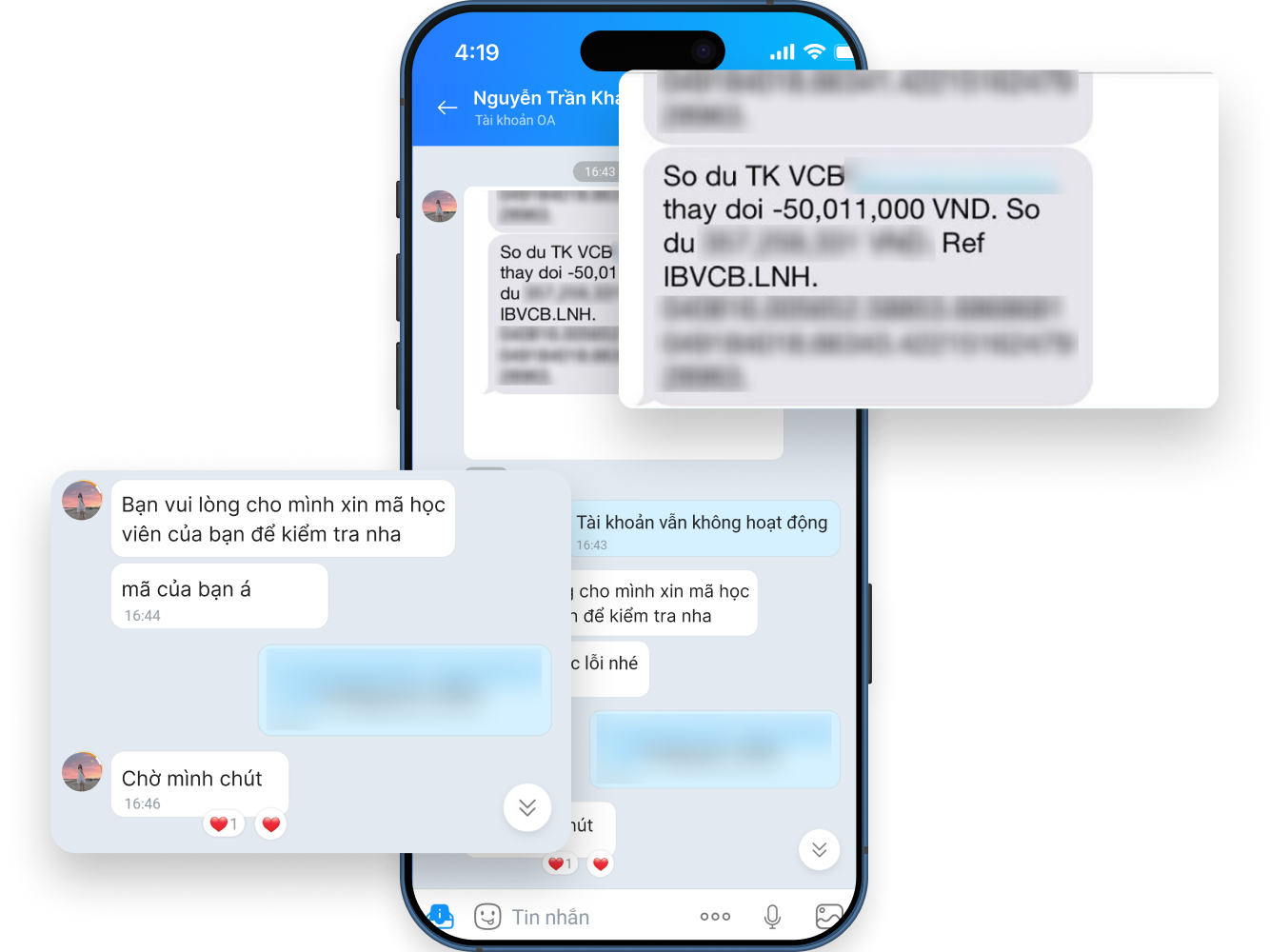
  • If you have transferred the money but the order has not updated after a few minutes, check the transfer reference and contact support with your order code.
  • Make sure you transfer exactly the amount shown on the QR code.
Other guides

  • >Price tier configuration
  • >Using the module feature (multi-course)
  • >Affiliate & affiliate payouts
  • >User management
  • >Email marketing
  • >Upgrading an account from Free to Pro
MONA E-Learning manual

MONA E-Learning user manual

MONA E-Learning anti-leak

Video protection against piracy

An all-in-one E-Learning platform for experts, coaches and education businesses - host courses, automate sales and operate communities on a single system.

Menu
  • Features
  • Customers
  • User guides
  • API documentation
Contact
Head office
1073/23 Cach Mang Thang 8, Ward 7, Tan Binh District, Ho Chi Minh City
Hotline
1900 636 648
Working hours
Mon – Sat · 08:00 – 18:00 (GMT+7)
Managing company
MONA MEDIA COMPANY LIMITED
Tax code
0313769557
Issued date
21/04/2016 - Ho Chi Minh City DPI
© 2026 Mona Academy. All rights reserved.